
Description
Read the announcement: The Arranger SMuFL font for Dorico, Finale and MuseScore
[macOS & Windows]
The Arranger SMuFL Fonts for Dorico, Finale v27+ & MuseScore v4.6+
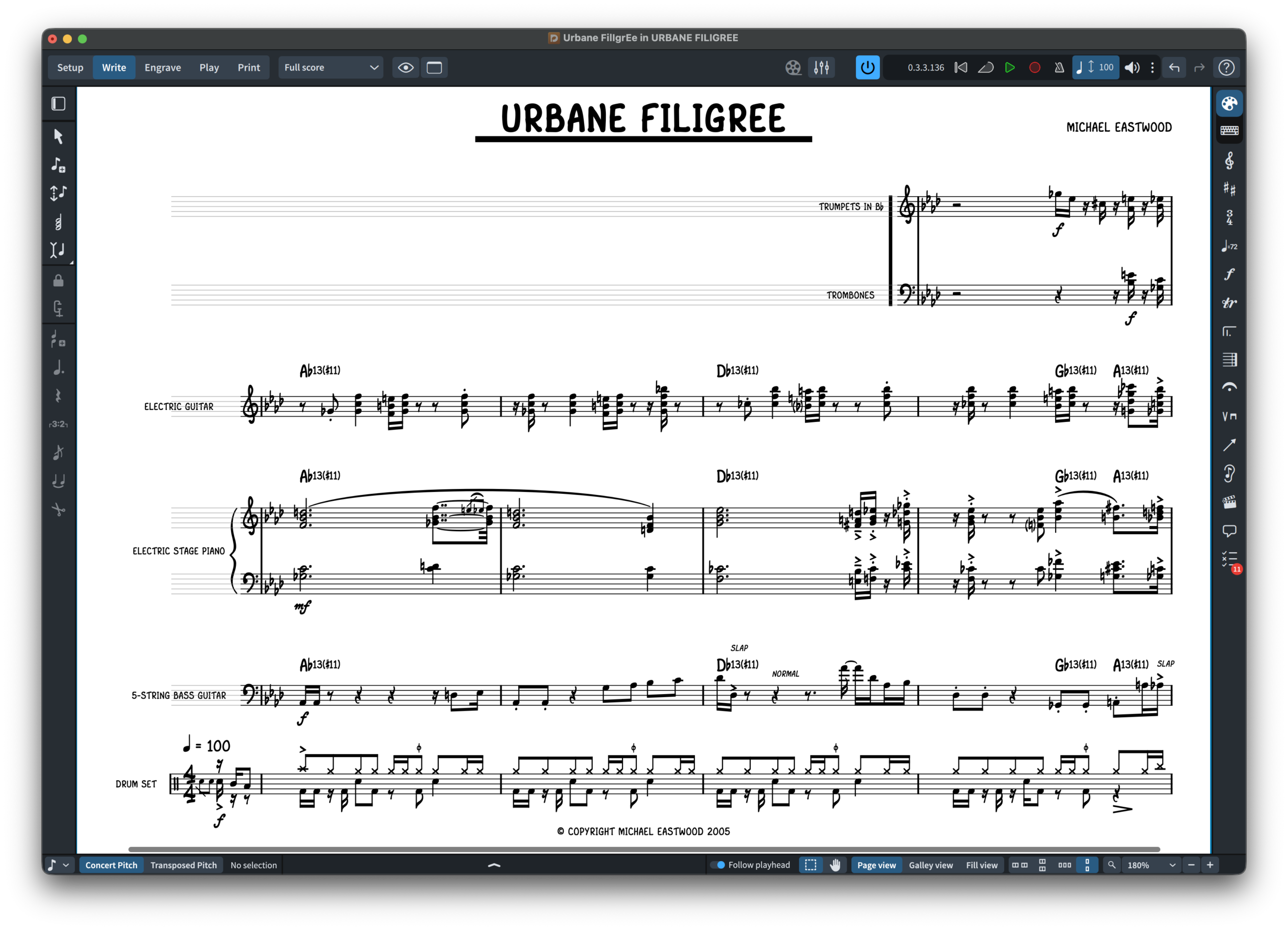
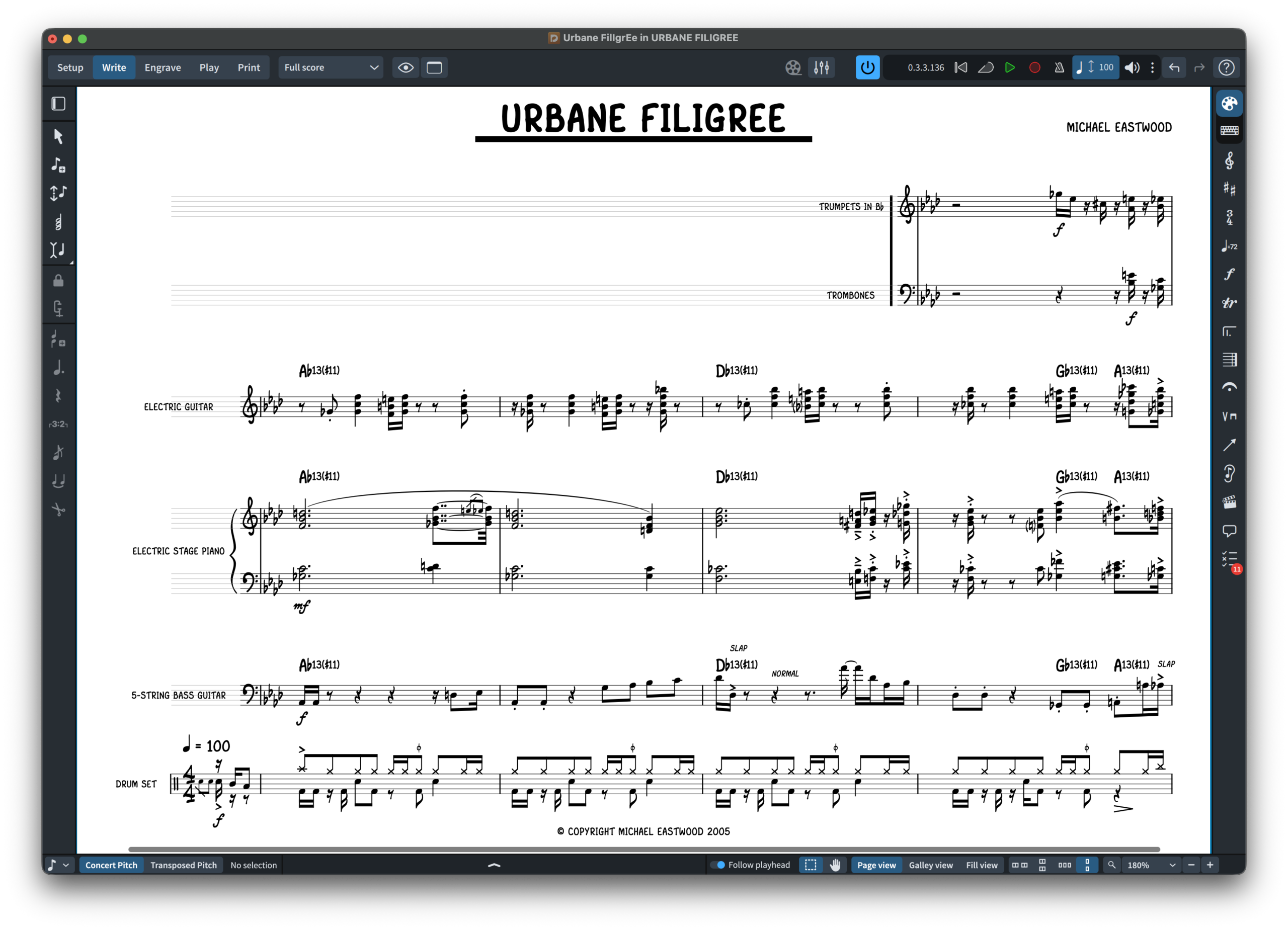
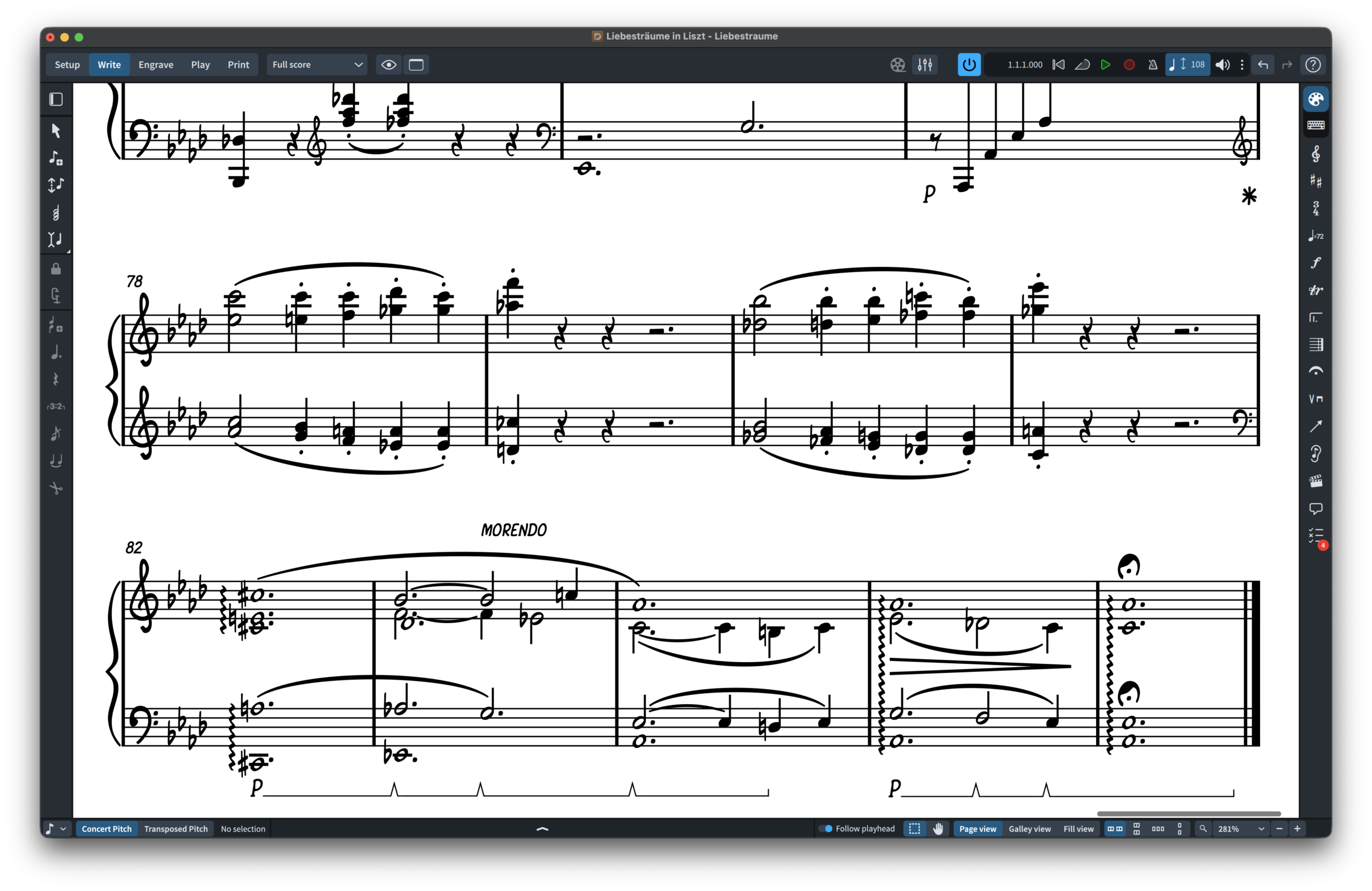
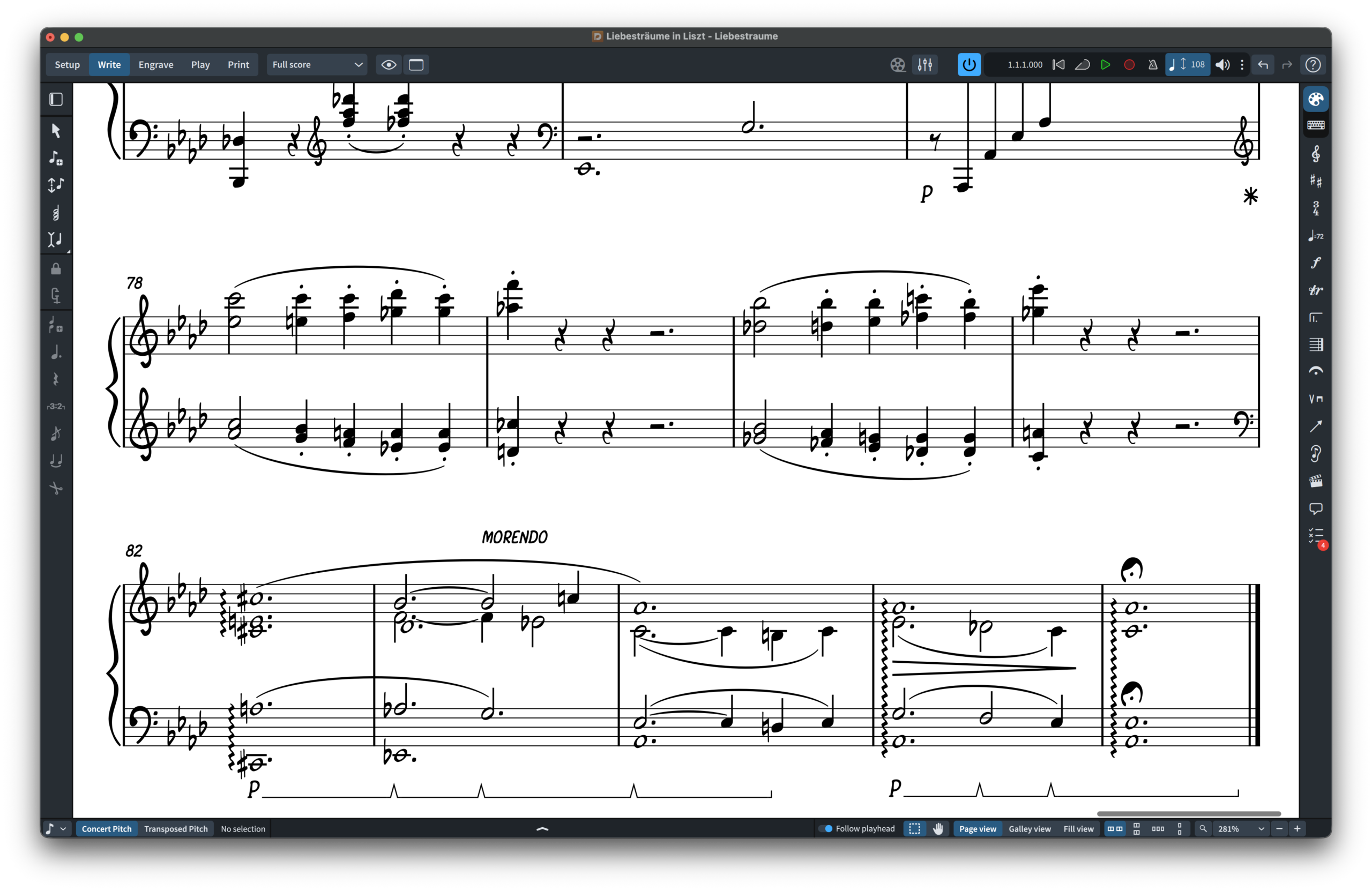
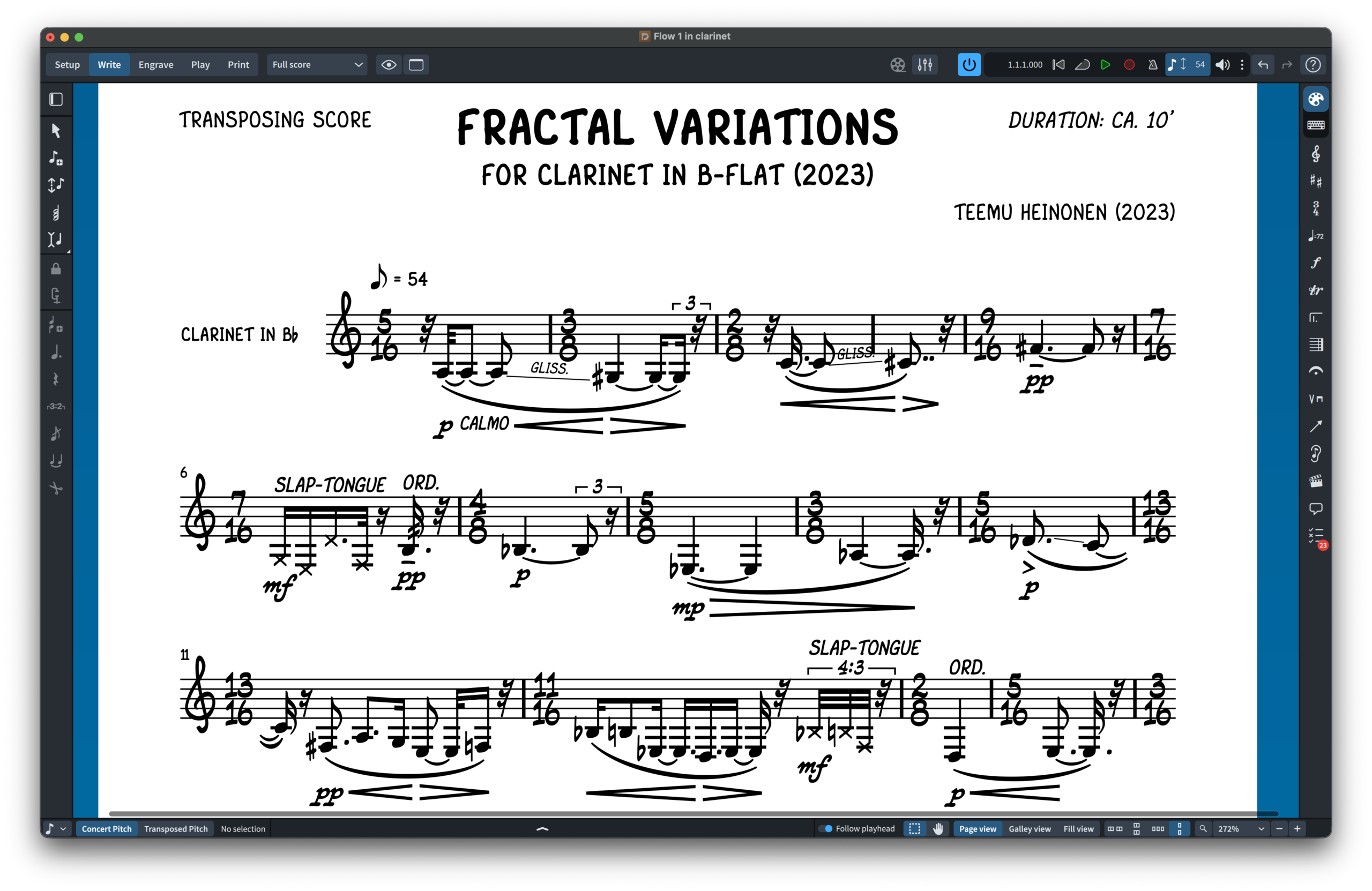
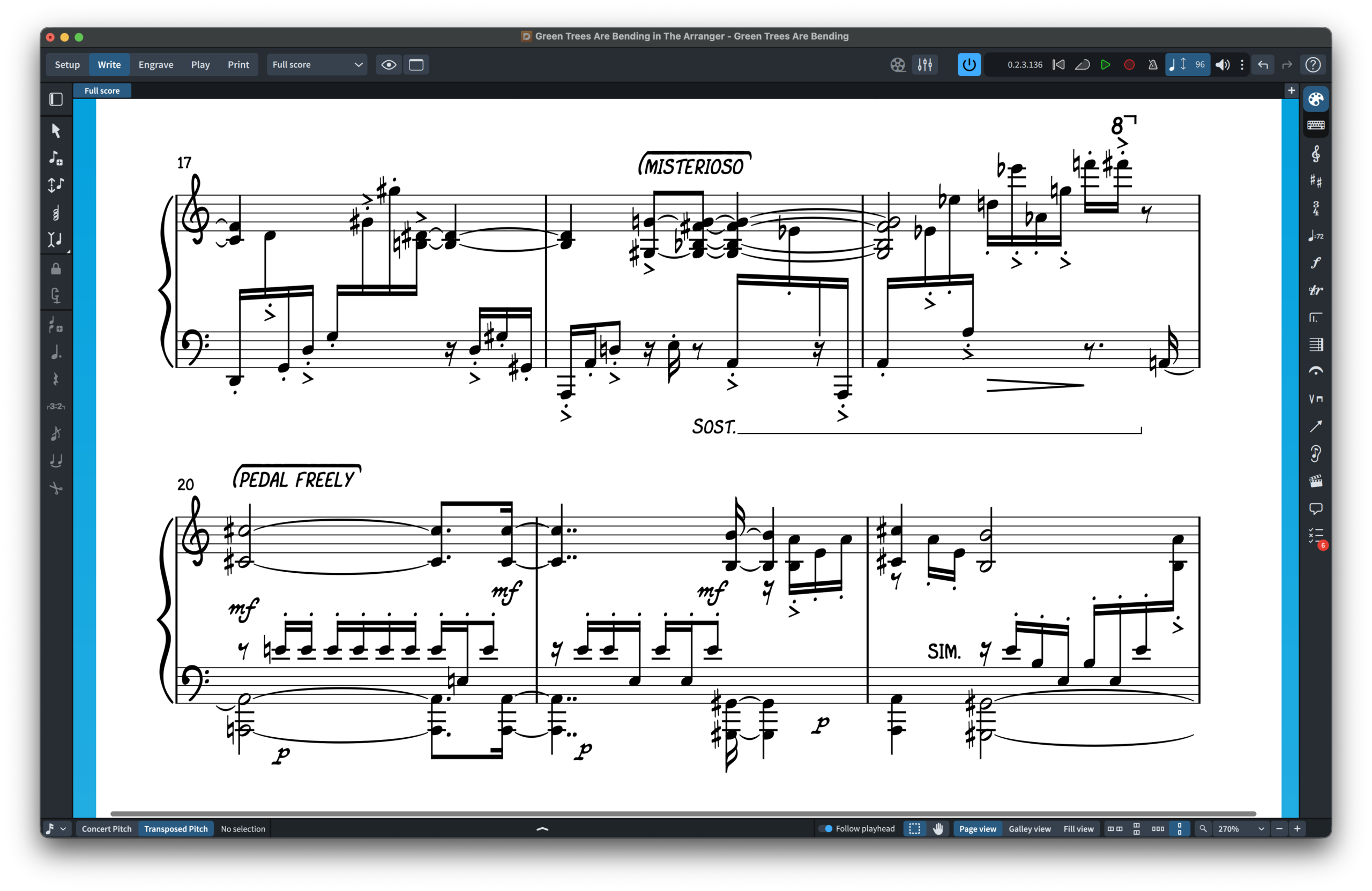
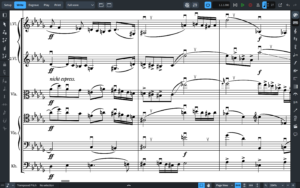
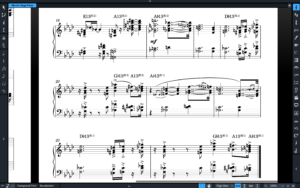
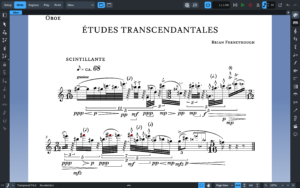
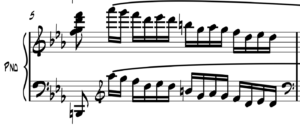
The Arranger is a handwritten music font family that includes 2 SMuFL-compliant music fonts and 10 jazzy text fonts. It is designed to bring the lively personality and unmistakable charm of traditional hand-copied music to your scores. Inspired by the classic Broadway engraving style and the elegance of West Coast copyists, The Arranger captures the expressive spirit associated with Bert Kosow’s Copyist Style, while offering the precision and flexibility required by modern notation software. With an extensive library of more than 1,400 music symbols, The Arranger is a distinctive and practical alternative to established music fonts such as Bravura, Petaluma, Finale Maestro, Finale Jazz, and Finale Broadway.
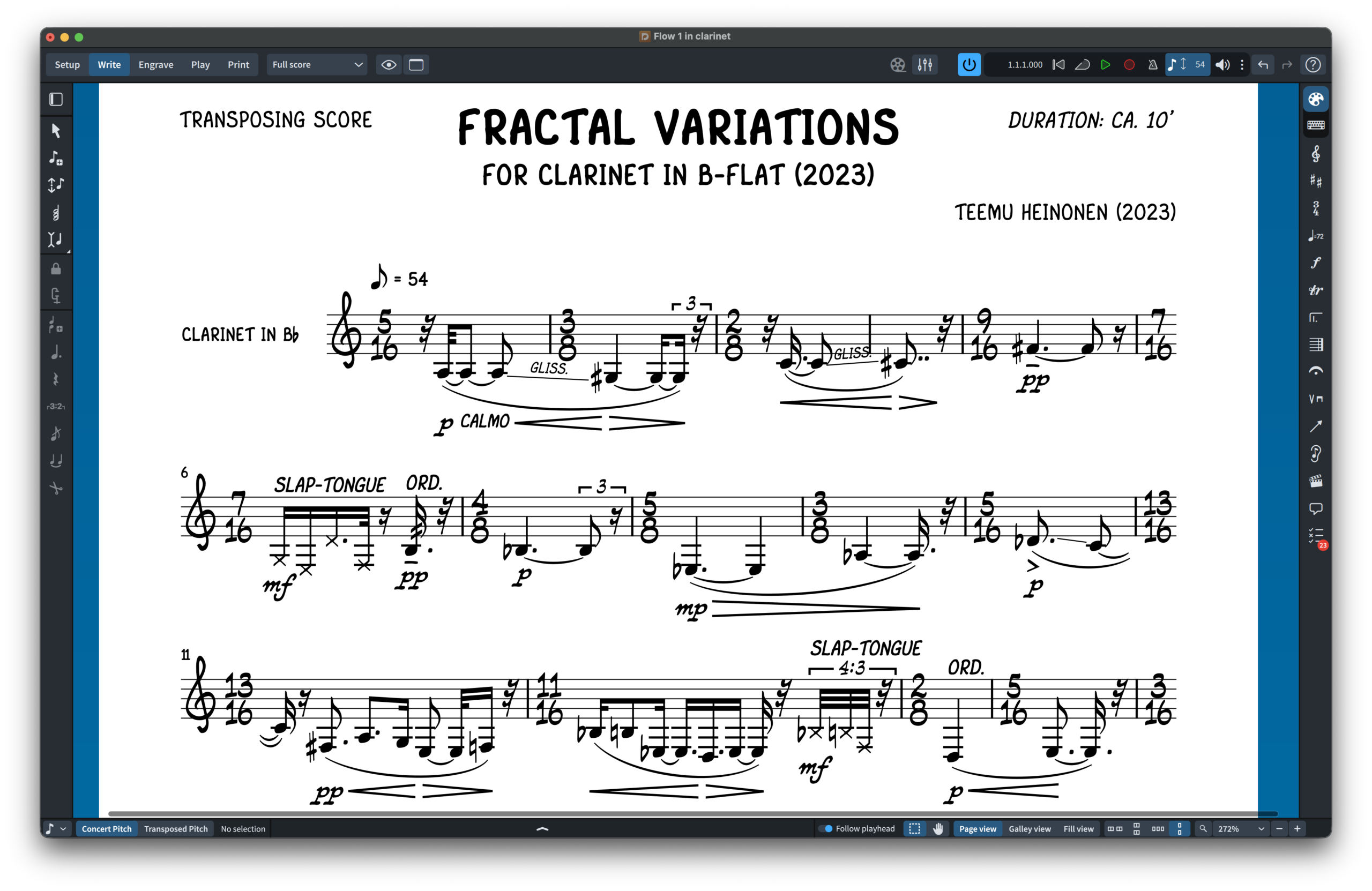
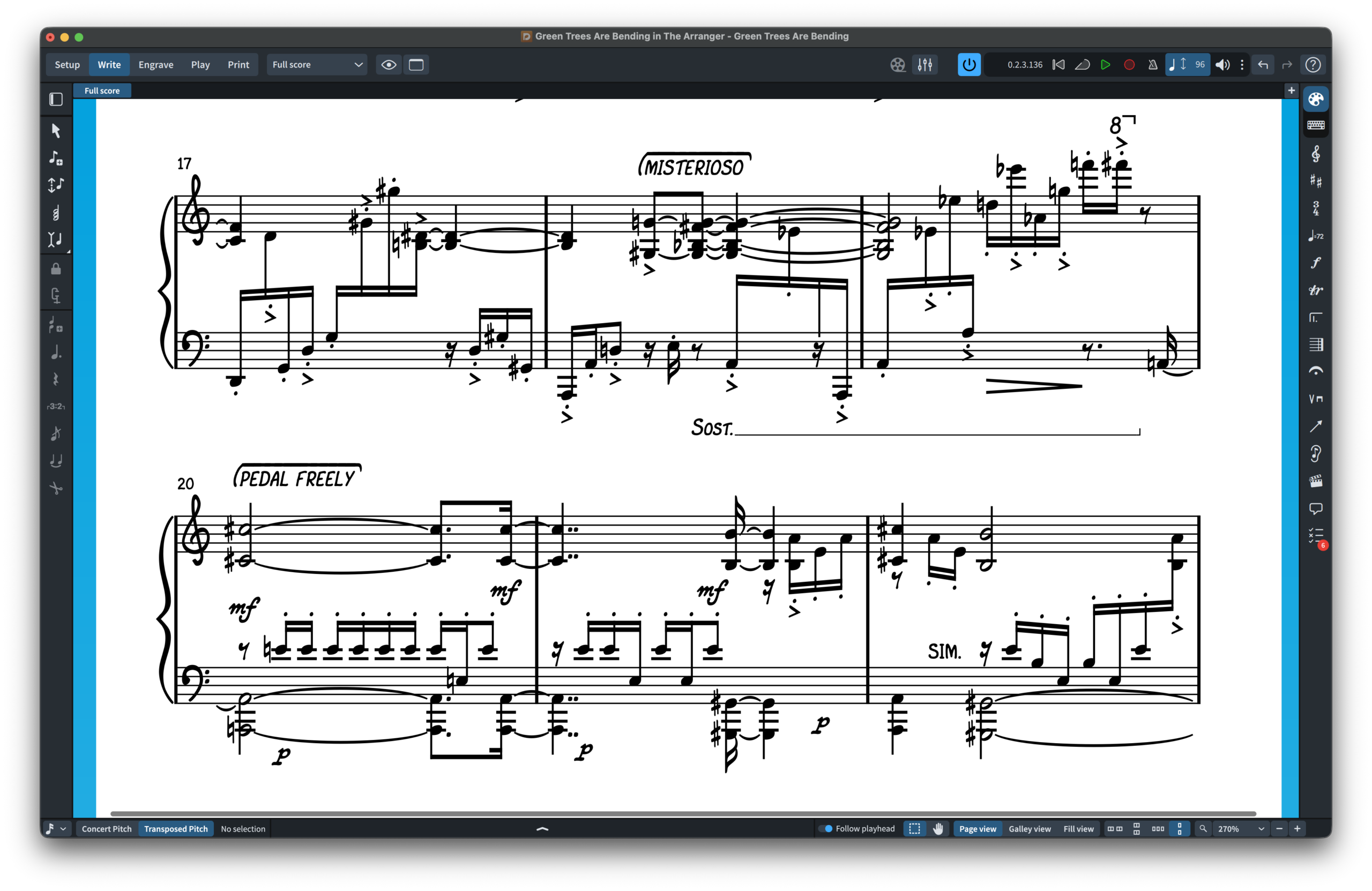
The family is available in two complementary weights. The Arranger, the standard weight, offers a confident and highly legible handwritten appearance, with strong strokes, clear shapes, and a full presence on the page. The Arranger Lighter, by contrast, is designed for users who prefer a more delicate, open, and refined copyist look. It preserves the same Broadway-inspired character while reducing visual density, giving noteheads, clefs, accidentals, dynamics, articulations, and other symbols a softer and airier appearance.
Together, The Arranger and The Arranger Lighter provide two expressive engraving options: one confident and assertive, the other lighter and more spacious. Both retain the warmth, individuality, and handcrafted feel of classic Broadway scores.
PDF Samples
-
- The Arranger – Green Trees Are Bending
- The Arranger Lighter – Green Trees Are Bending
- The Arranger – URBANE FILIGREE
- The Arranger Lighter – URBANE FILIGREE
- The Arranger – À Chloris (1913)
- The Arranger – Piano – À Chloris (1913)
- The Arranger – Voice – À Chloris (1913)
- The Arranger Lighter – À Chloris (1913)
- The Arranger Lighter – Piano – À Chloris (1913)
- The Arranger Lighter – Voice – À Chloris (1913)
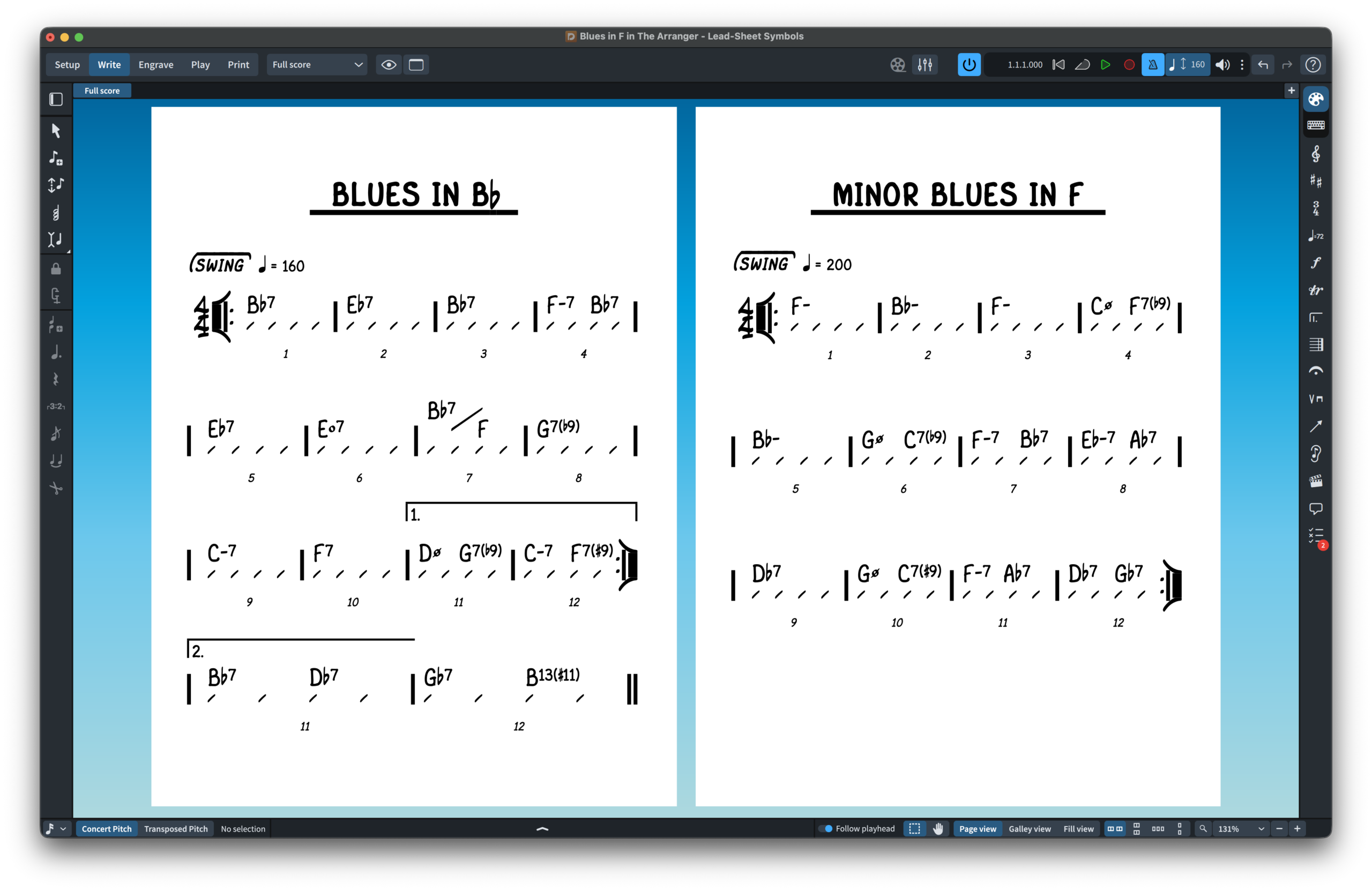
- The Arranger – Blues In F
- The Arranger – Blues In Bb
- The Arranger Font — Dorico Chords
- The Arranger – Liebesträume
- The Arranger Lighter – Liebesträume
- The Arranger — Fractal Variations
- The Arranger Lighter — Fractal Variations
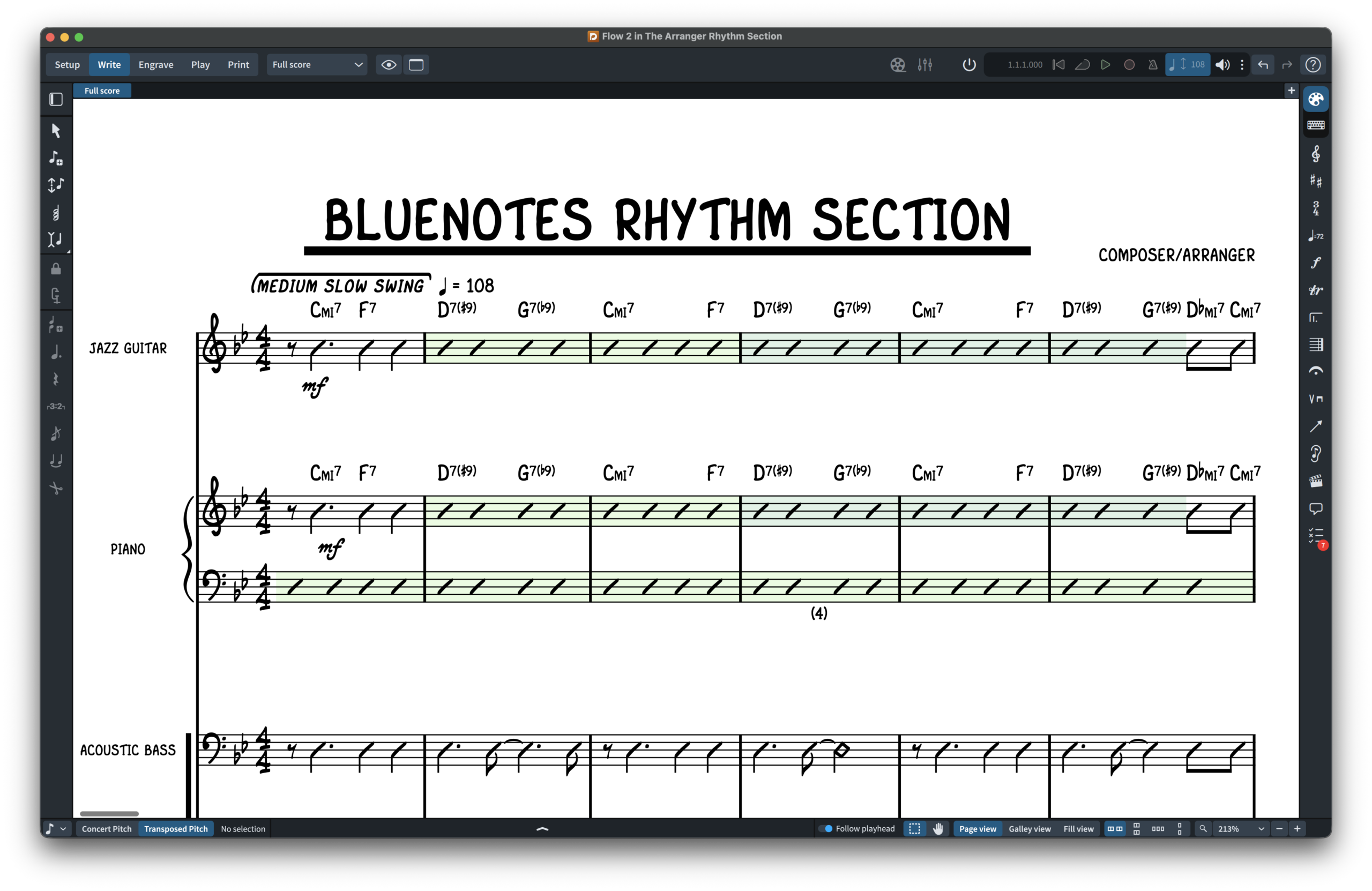
- The Arranger Rhythm Section
Boxed Texts
It is possible to create beautiful boxed text in Dorico and Finale v27 by typing the following text combinations. These character combinations work on both operating systems: macOS and Windows.

Text combination: {M—e—d—i—u—m— —S—w—i—n—g}

Text combination: [M_e_d_i_u_m_ _S_w_i_n_g]

Text combination: ≤M\e\d\i\u\m\ \S\w\i\n\g≥

Text combination: ≤1≥ ≤2\\3≥ ≤2\\8\\4≥
INSTALLING THE ARRANGER FONTS
It is easy to install The Arranger fonts. The package includes 3 installers: 1 for macOS and 2 for Windows.

Note for macOS users:
During installation, you may encounter a popup stating, “…pkg can’t be opened because Apple cannot verify it for malicious software.” To bypass this message, right-click or Control-click the *.pkg file and select “Open” from the context menu. You will see a similar message, but this time you will have the option to ignore the warning by clicking the “Open” button. If the message persists, go to System Settings > Privacy & Security > Security, where you will find an “Open anyway” option for the pkg installer.
APPLYING THE ARRANGER FONTS IN DORICO™ PRO
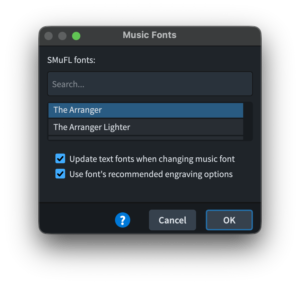
When Dorico starts, it will detect the new metadata file and add The Arranger to the list of available music fonts. To use The Arranger or The Arranger Lighter:
- Open a Dorico score.
- Go to Engrave mode (Ctrl+3 on Windows or Cmd+3 on macOS), then choose Engrave > Music Font.
- In the dialog window, select the font name from the list, click Change Music Font, then choose The Arranger or The Arranger Lighter to apply it to your open score.
- Optionally, check or uncheck the box to use the recommended engraving options, then click OK. Your score will update with the newly selected The Arranger or The Arranger Lighter font.
You may also want to change the Default text style in Engrave > Paragraph Styles and the Default text font in Engrave > Font Styles to The Arranger Alpha. In Engrave > Character Styles, set Music Text to The Arranger Text.
Changing the Music Font in Finale v27
Go to Document > Set Default Music Font…, select The Arranger or The Arranger Lighter, and click OK.
Important note: Stem connections may be misaligned after converting the default music font to a SMuFL-based font. For more information on how to fix this issue, click here.
 BopMusic Fonts Set for Sibelius
There are no reviews yet. Be the first one to write one.