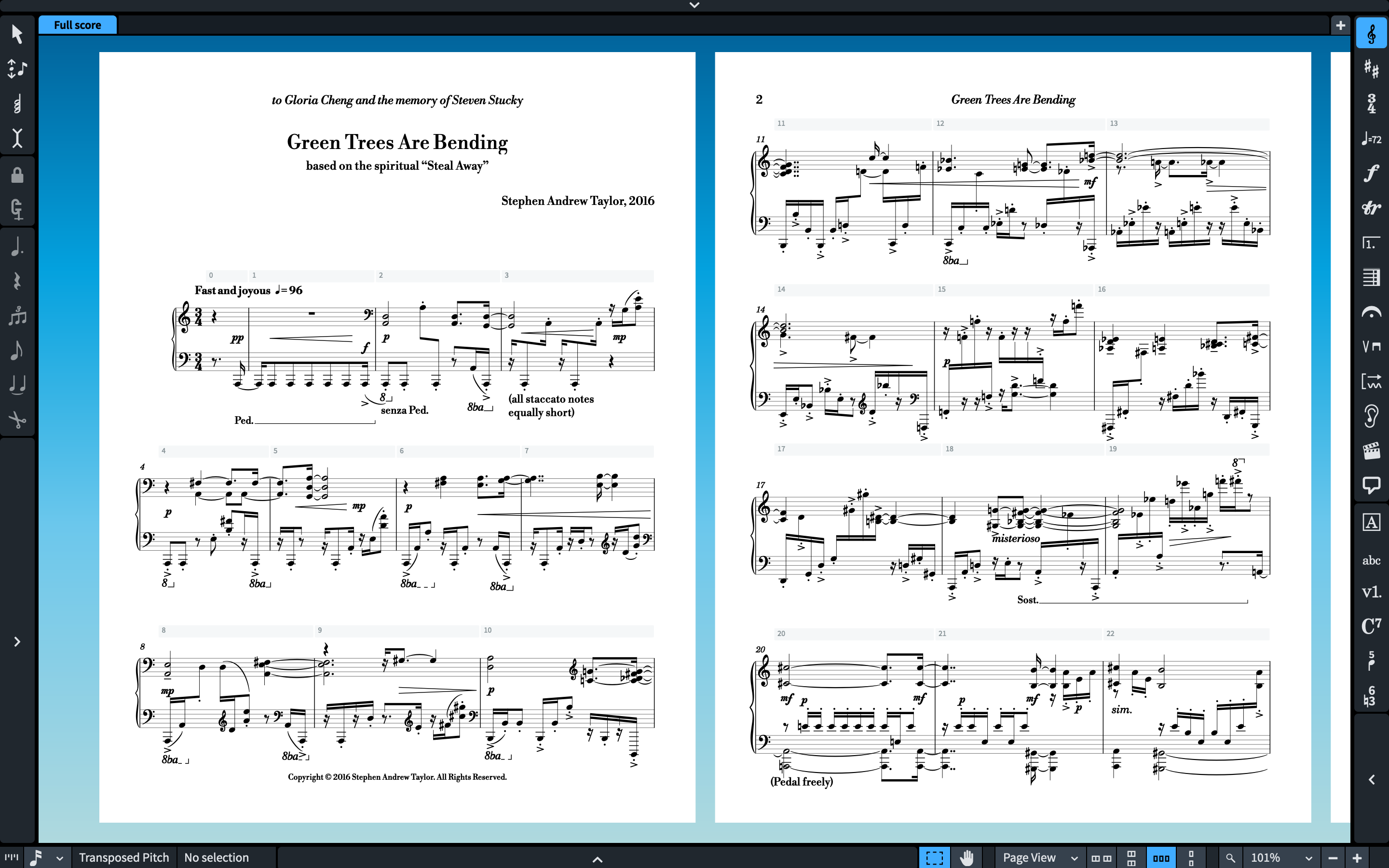
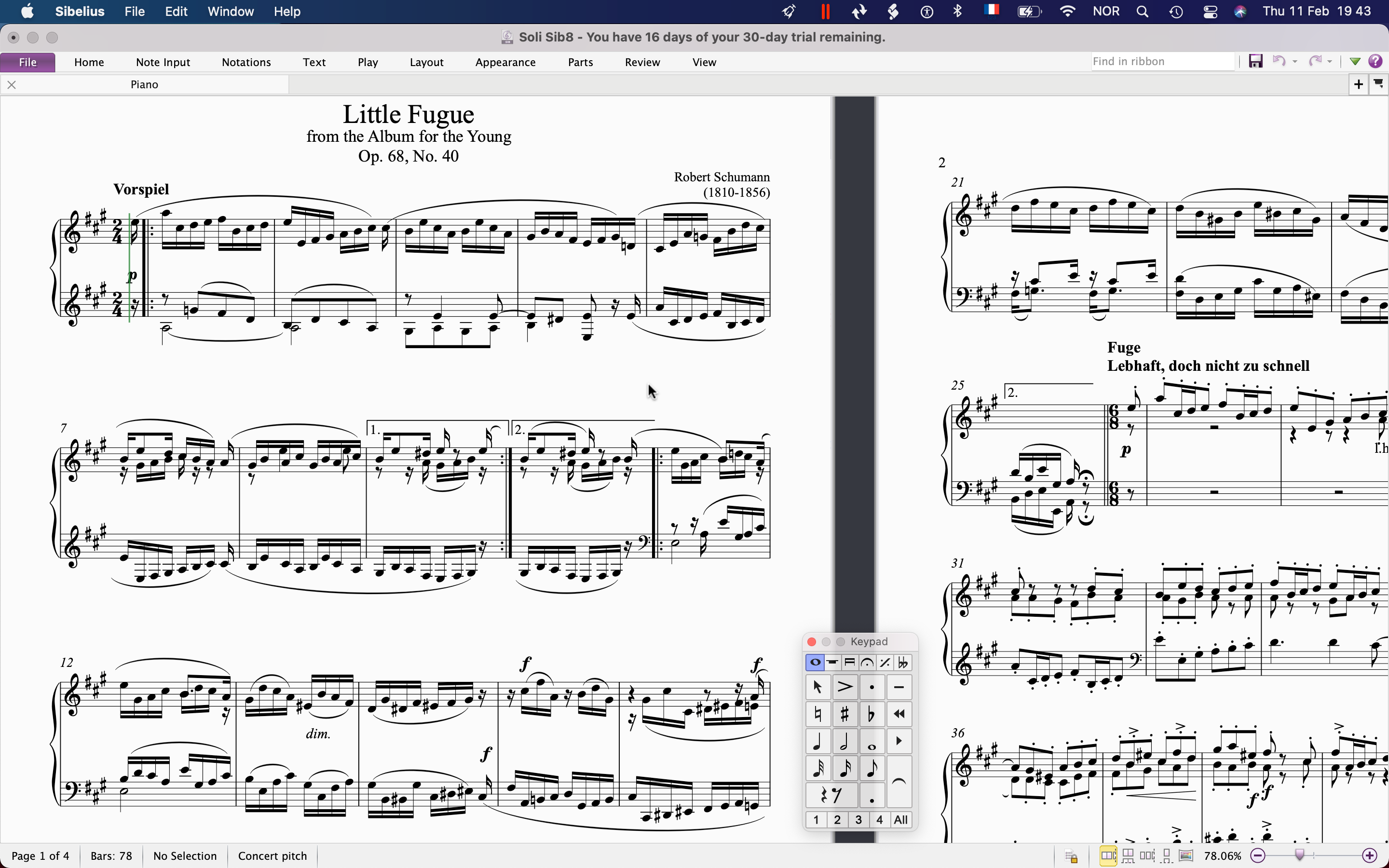
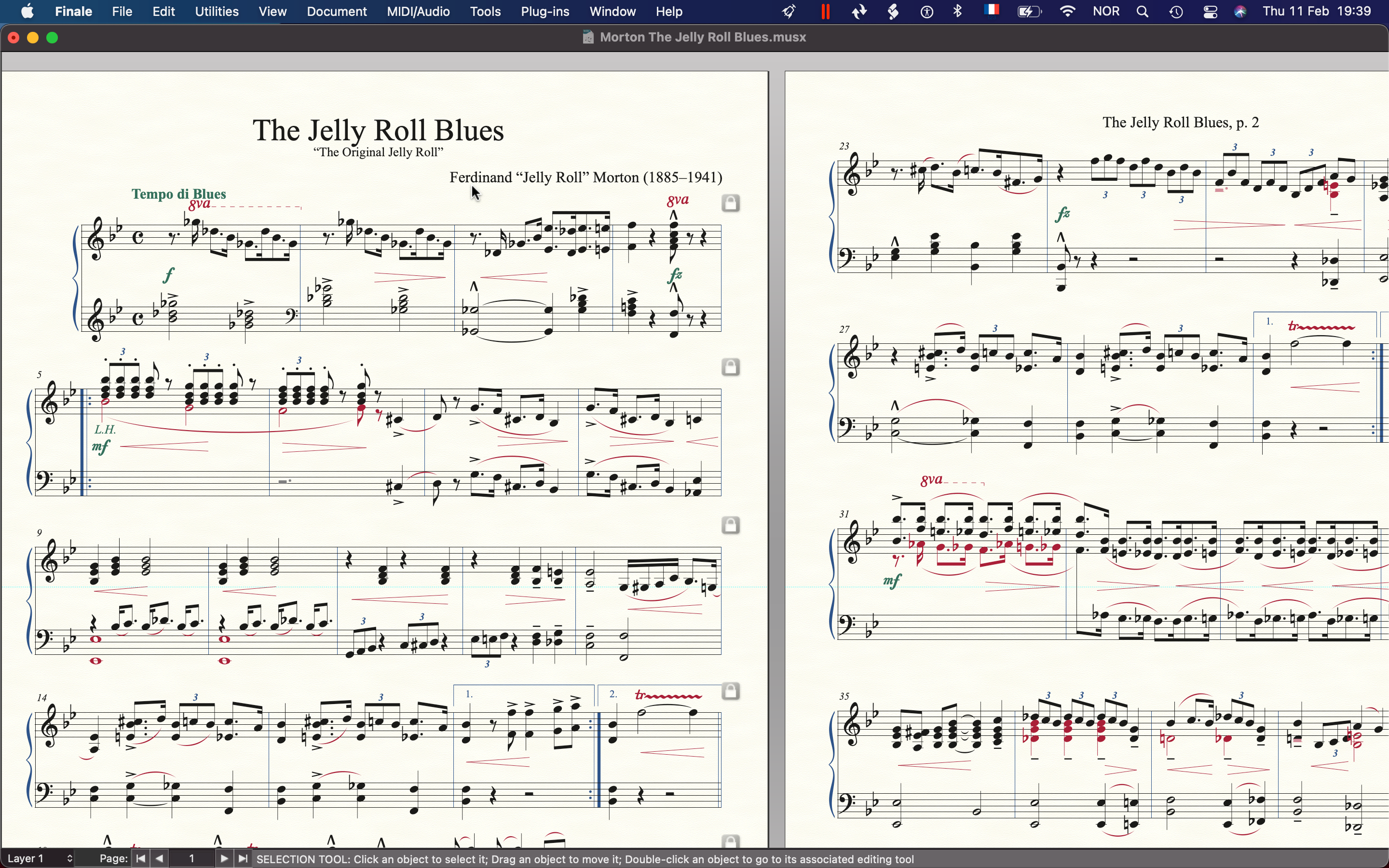
Description
[macOS & Windows]
SOLI FOR DORICO™, SIBELIUS™, FINALE v26/25 & FINALE v27 FEATURE 2 SMUFL COMPLIANT MUSIC FONTS: SOLI & SOLI TEXT.
Soli is an elegant engraver music font made from scratch, yet more robust than some other music fonts, but more accurately represents the look of smooth engraved music and work as an alternative to Bravura & Finale Maestro.
This is Solis sister font, Tutti is an elegant engraver music font with a thick appearance, yet more robust than some other music fonts, but more accurately represents the look of smooth engraved music and works as an alternative to Bravura & Finale Maestro font.
INSTALLING SOLI & TUTTI FONTS
It’s easy to install Soli & Tutti fonts since they come with two installers, macOS and Windows.
Note for macOS users:
During installation, you may encounter a popup stating, “…pkg can’t be opened because Apple cannot verify it for malicious software.” To bypass this message, right-click or control-click on the *.pkg file and select “Open” from the context menu. You’ll be presented with a similar message, but this time, you’ll have the option to ignore the warning by clicking the “Open” button. If the message persists, proceed to System Settings > Privacy and Security > Security. Here, you’ll find an “Open anyway” option for the pkg installer displayed.
PDF SAMPLES
APPLYING SOLI & TUTTI FONT IN DORICO™ PRO
When running Dorico, it will find the new metadata file and will make an entry for the font in its list of available music fonts. However, to use the Soli font:
- Open a Dorico score,
- Go to Engrave mode (Ctrl+3 or Cmd+3), click on the Engrave > Music Fonts menu option,
- In the dialog window that appears, click on the name of the font in the list, then click the button “Change Music Font” and select Soli to apply the font to your open score project
- Again, Engrave > Font Styles… > Font Style to “Default Music Text Font” choose: Soli Text
You can optionally check or uncheck the box to use the recommended engraving options; click “OK”, and you’ll notice that your score project is taking effect of the changes with the newly selected Soli font.
Tip: CHANGING THE LOOK OF THE CLEFS IN DORICO

Changing the Music Font in Finale v27
Go to Document > Set Default Music Font… select Soli font and click OK.
IMPORTANT NOTE: Stems connections can be misaligned after converting the default music font to a SMuFL-based font, for more info on how to fix this issue click here.
There are no reviews yet. Be the first one to write one.