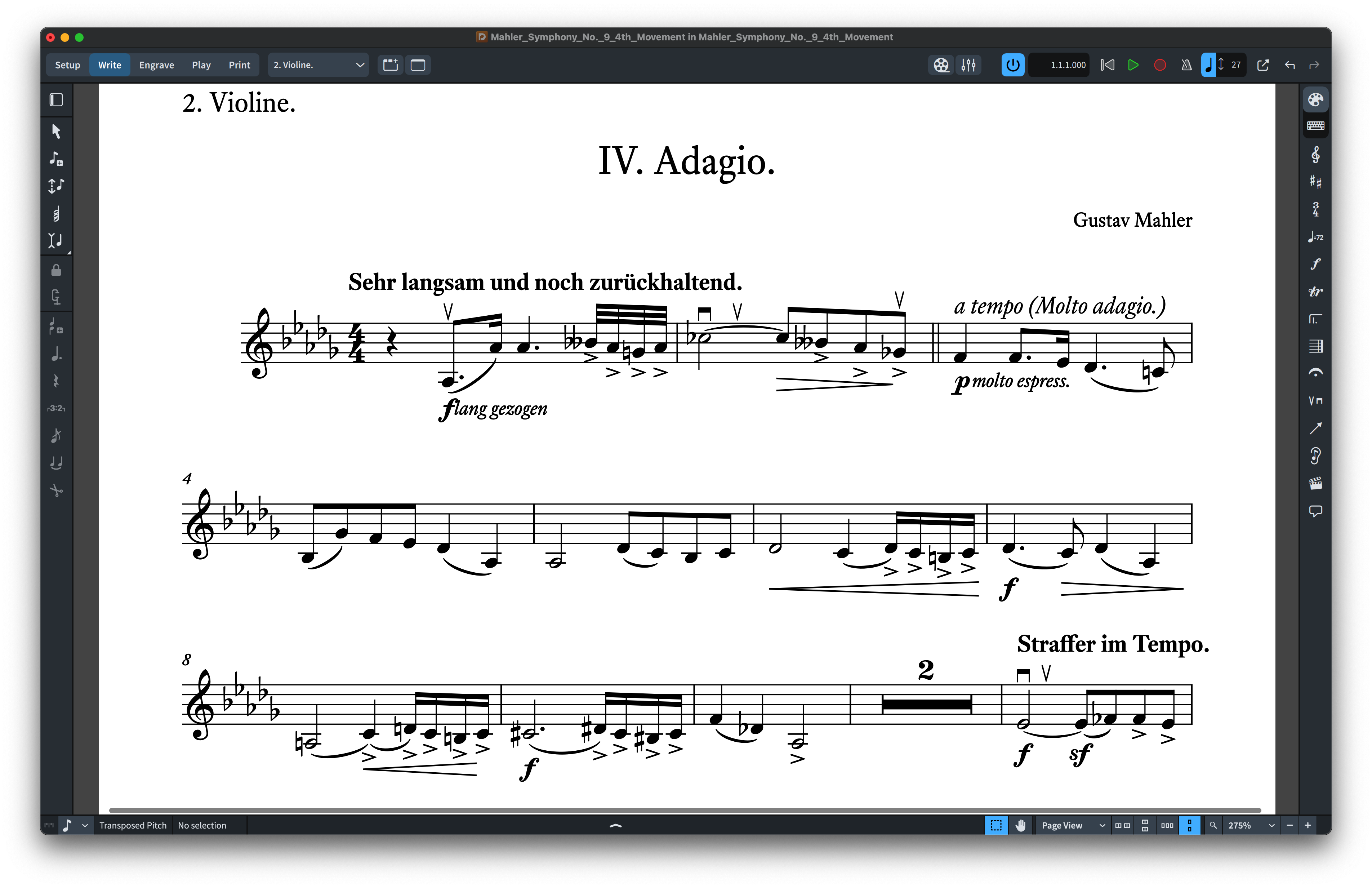
MuseScore can use third-party SMuFL music fonts when the font and its required SMuFL metadata are installed correctly. With NorFonts, the safest approach is to install the complete package supplied for MuseScore rather than copying only the visible .otf file.
For compatible families, browse MuseScore Music Fonts or the broader SMuFL Music Fonts collection.
1. Extract the downloaded package first
After downloading a NorFonts ZIP file, extract it completely before installing anything. The package may contain OpenType fonts, SMuFL metadata and, depending on the product, additional style resources intended for the notation application.
2. Install the complete font package
On macOS, use the supplied installer when one is included, or install the OpenType files through Font Book. On Windows, use the supplied installer when available, or install the .otf files through the standard Windows font installation command.
For SMuFL packages, using the supplied installer is preferable because the metadata files may need to be placed in specific locations in addition to the font itself.
Exact locations for SMuFL metadata
If the NorFonts package includes an installer, use it first: the installer may place the OpenType fonts and their SMuFL JSON metadata automatically. If installing by hand for multiple notation applications, put the metadata file in the folder required by the SMuFL specification:
| System | User-specific SMuFL metadata folder |
|---|---|
| macOS | ~/Library/Application Support/SMuFL/Fonts/<FontName>/<FontName>.json |
| Windows | %LOCALAPPDATA%\SMuFL\Fonts\<FontName>\<FontName>.json |
The <FontName> placeholder means the actual SMuFL font name and metadata filename, which must match the package; do not literally create a folder named “FontName”. Install the supplied OpenType files normally using Font Book on macOS or the font installer on Windows. See the official SMuFL metadata locations.
Alternative: MuseScore-only MusicFonts folder
MuseScore Studio can also load a complete SMuFL font package from its user folder, without placing the JSON in the system SMuFL directory:
- macOS:
~/Documents/MuseScore4/MusicFonts/<FontName>/ - Windows:
C:\Users\YOURNAME\Documents\MuseScore4\MusicFonts\<FontName>\
Create one subfolder named exactly for the font, and put the musical symbols .otf, the corresponding musical text .otf when supplied, and the .json metadata file together in that subfolder. If your Documents folder is redirected (for example by OneDrive), check Preferences → Folders → Musical symbol fonts for the folder MuseScore actually uses. This method is specific to MuseScore; use the normal installer for wider compatibility.
3. Restart MuseScore
If MuseScore was open while the font was installed, quit and reopen it. Applications often build their available-font list at launch, so a newly installed music font may not appear until the program is restarted.
4. Choose the custom music font in the score style settings
Open the score and use MuseScore’s style settings to select the installed music-symbol font. The exact placement of the control can evolve between MuseScore versions, so the important point is to choose the music font at the score-style level rather than treating it like an ordinary text font.
If the NorFonts product includes a MuseScore style file, load the supplied style to apply the settings intended for that font family.

Important distinction: The musical symbols font controls score glyphs. Its matching musical text font is normally selected automatically when you choose the symbol font. A separate general-purpose text or chord-symbol font can still need adjustment in the text style settings.
5. Review the score after changing fonts
Changing the music font changes the visual texture of the entire score. Review accidentals, dynamics, articulations, spacing, text relationships and dense passages rather than judging only the first system.
To compare available families by notation software, visit Compare NorFonts and open the individual products for score samples.
Troubleshooting: the font does not appear
If MuseScore does not list the font, first restart the application. If that does not help, reinstall the complete NorFonts package rather than the .otf alone so that the SMuFL metadata is installed with the font.
Also check for duplicate or older copies of the same font family, which can cause the application or operating system to load the wrong version.
Quick troubleshooting checklist
| Symptom | Likely cause | What to try |
|---|---|---|
| Font missing from the Style → Score list | Missing JSON metadata or wrong folder name | Check that the .otf and matching .json files are in the expected locations; restart MuseScore. |
| Font appears but symbols look inconsistent | Older copy of the font, missing glyphs, or incomplete installation | Check duplicate font installations and install the complete latest package; unsupported glyphs may fall back to Bravura. |
| Music changes but chord-symbol lettering does not | Chord symbols use separate text and style settings | Review Format → Style → Chord symbols and the relevant text styles. |
| Score spacing feels different after changing fonts | Font-specific engraving metrics vary | Leave automatic font style settings enabled when available, then inspect dense passages and individual parts. |
| Uploaded score displays with a different font online | Custom fonts are not necessarily available in MuseScore.com previews | Export a PDF when you need to preserve the exact visual appearance. |
Music font versus text font
A music font controls notation symbols; companion text fonts may be used separately for chord symbols, tempo text, rehearsal marks or other text roles. Depending on the product and score, you may want to adjust those text styles separately after changing the music font.
Official reference: MuseScore Studio Handbook — Music fonts, including music font installation, the Score dialog and fallback behavior.
For full installation instructions covering macOS, Windows, Dorico, Finale, MuseScore and Sibelius, see Font Installation & SMuFL Setup.